

What you will accomplish
- Find the correct position in the Positions tab
- Use the CLOSE button and close dialog correctly
- Confirm whether the position was fully or partially closed
- Withdraw available stablecoin funds and verify the transfer
Before you begin
- A connected wallet and the correct Quote.Trade account
- An open position you want to reduce or close
- A few minutes to wait for balances and transfers to update
- The connected self-custody wallet that will receive the withdrawal
- Remember that closing a position and withdrawing funds are separate actions
First close the trade. After that, withdraw any available stablecoin balance. Closing a position does not automatically send funds out of the account.
Open the Positions tab and find the row you want
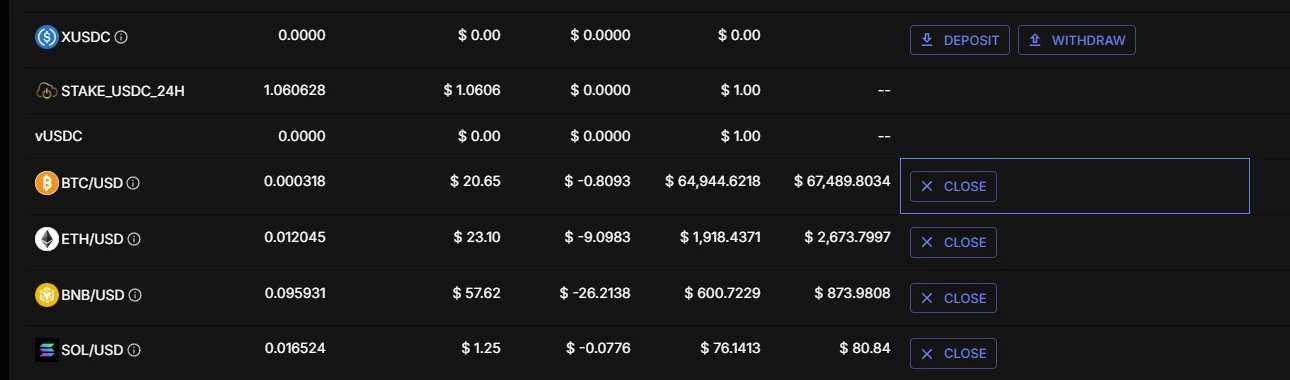
Go to Quote.Trade and open the Positions tab. Find the symbol you want to exit, such as BTC/USD. Double-check the symbol and size so you do not close the wrong position.
Click the CLOSE button for that position
Click CLOSE on the same row. The Close Positions window opens for that position. If several positions are open, check the symbol again before continuing.
Review the Close Positions window and confirm the amount
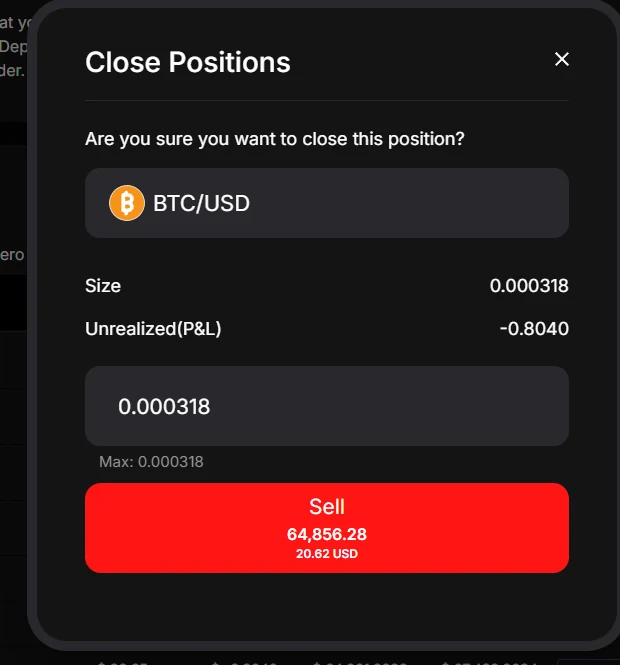
In the Close Positions window, check the symbol, current size, and unrealized P&L. The input field is usually prefilled with the full size. Leave it as-is to fully close the position, or enter a smaller number if you only want to reduce it. In the example shown here, the final confirmation button is the red Sell button.
Check that the position updated the way you intended
Return to the Positions tab and confirm the result. For a full close, the size should go to zero or the row should disappear. For a partial close, the position should remain with a smaller size. Do not keep clicking if the interface is still updating—wait a moment and verify the new state first.
Withdraw the amount currently available
Use the WITHDRAW button on the relevant stablecoin row, such as USDC, USDT, or XUSDC. The available withdrawal amount is limited by the account’s current risk and margin. Open positions and orders may reserve collateral, so you may need to close or reduce additional positions before more can be withdrawn. Withdrawals return to the connected wallet.
Open the Transfers tab and verify the transfer
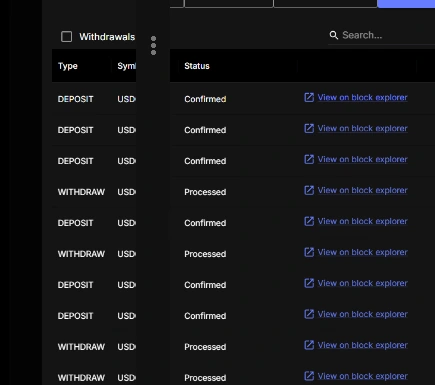
After submitting the withdrawal, open the Transfers tab. Confirm the status, token, amount, and any explorer link or transaction hash. Use the explorer to verify the destination address and completed on-chain transfer.
Common problems and fixes
I do not see a CLOSE button
Make sure you are on the Positions tab, connected to the correct account, and looking at a row with an actual open position. If the size is already zero, there may be nothing left to close.
The position is still there after I submitted the close
Check whether you entered a smaller amount and only reduced the position. If you intended a full close, confirm the remaining size and close the rest after the interface has updated.
I cannot withdraw the full balance yet
Your withdrawable balance is limited by current risk and margin. Open positions and orders may reserve part of the balance. Close or reduce additional positions or orders if you need more collateral to become available for withdrawal.
I do not see a transaction hash yet
Open the Transfers tab and check the request status first. If the transfer has not been finalized yet, wait for the platform to finish processing before assuming it failed.
Answers before you continue
Does the CLOSE button always fully exit the position?
No. The button opens the close dialog. Whether you fully close or only reduce the position depends on the amount you submit in that dialog.
Does closing a position automatically withdraw my funds?
No. Closing the trade and withdrawing funds are separate actions. After the close is complete, use the WITHDRAW button on the relevant stablecoin row if you want to move funds out.
What button do I press in the close dialog?
Use the final confirmation button shown in the dialog. In the example screenshot on this page, that button is the red Sell button.
Primary sources
Use the live Quote.Trade interface and current official documentation for the latest account controls, withdrawal flow, and transfer-verification details.